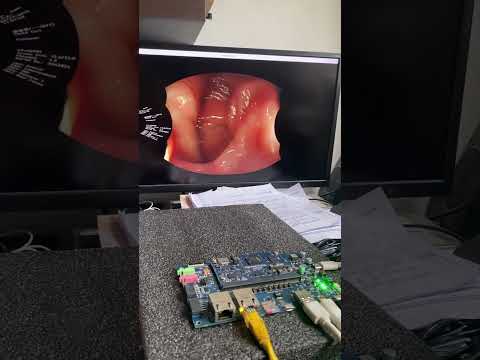
2-6 GStreamer Streaming Tests
In this section, we will perform streaming tests first on PC/Ubuntu 22.04, then try the similar commands on RZ/G2L with hardware-specific encoder/decoder adjustments. Then We'll test the video streaming from RZ/G2L to PC using GStreamer commands.
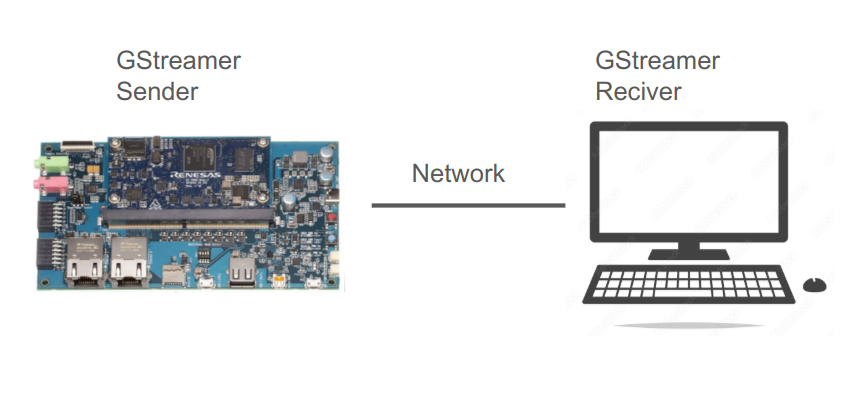
Basic test:
First, we can take a look at the simple video test source,
( RZ/G2L )
gst-launch-1.0 videotestsrc ! autovideosink
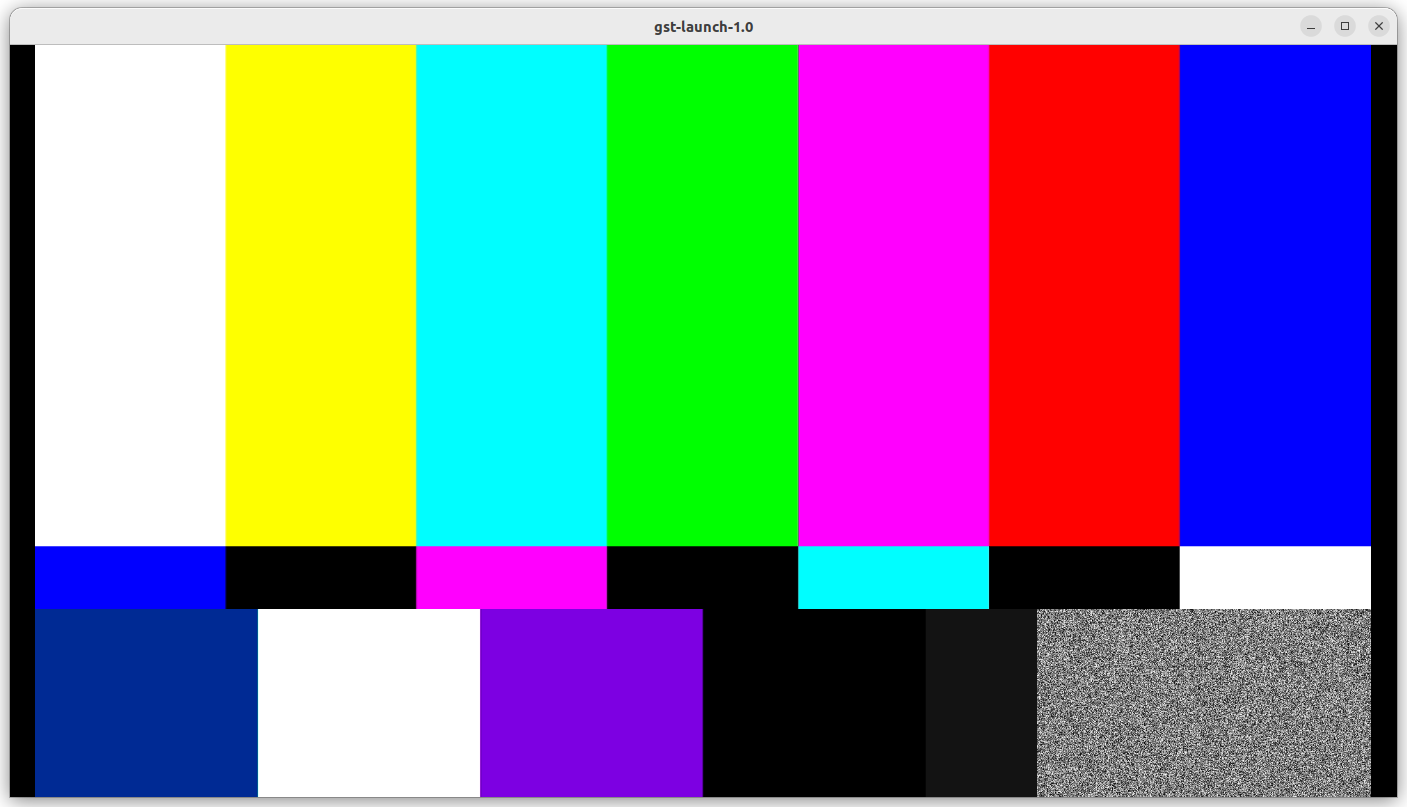
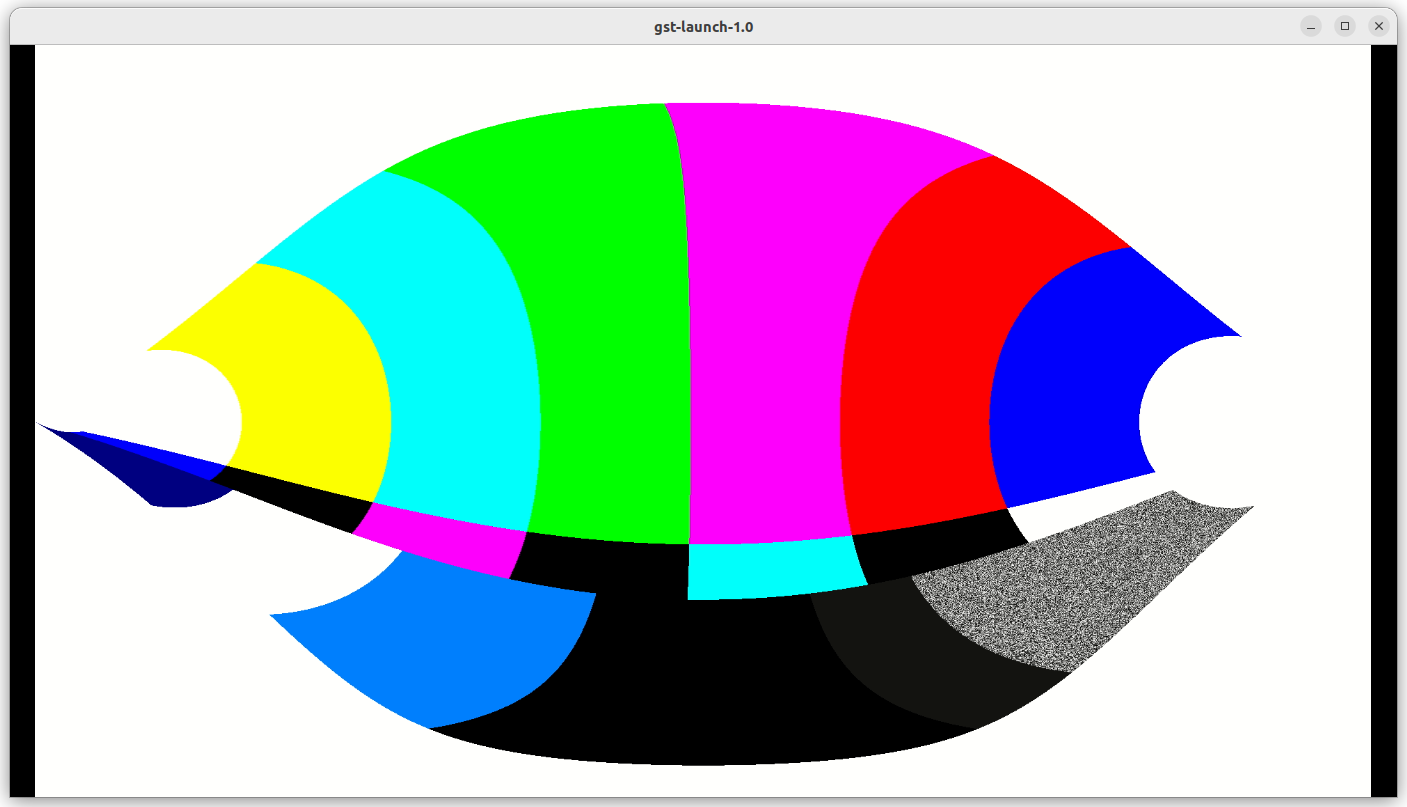
We then perform a simple test to make sure equirectangular filter work properly
( RZ/G2L )
gst-launch-1.0 videotestsrc ! video/x-raw,width=1920,height=1080 ! videoconvert ! equirectangular ! videoconvert ! autovideosink
Make sure if the X,Y Maps are exist in the folder,
EquimatX, EquimatY
The output screen is as below,
Streaming testing:
We prepare to do a streaming test from RZ/G2L to PC,
First, open a terminal on Ubuntu 22.04, wait for receiving h.264 stream from RZ/G2L.
( PC )
gst-launch-1.0 udpsrc port=5000 ! application/x-rtp,media=video,clock-rate=90000,encoding-name=H264,payload=96 ! rtph264depay ! avdec_h264 ! autovideosink
Ref. to this Gist, GStreamer UDP stream examples
https://gist.github.com/yourskc/1a29c2de32e45764b8cf914fd7240b7c
Below various test scripts are outlined for video streaming with increasing complexity, including decompression, processing, and compression steps.
You can use scripts and data under /test_env folder for test
- mp4 video file > streaming
Please change the IP address and file name in the .sh script in the following,
run the script on RZ/G2L
run1.sh
or run the command below
gst-launch-1.0 -e filesrc location=./endo01.mp4 ! qtdemux ! queue ! \
h264parse ! video/x-h264, stream-format=avc,alignment=au ! rtph264pay pt=96 name=pay0 \
config-interval=3 mtu=6000 ! udpsink host=192.168.0.105 port=5000
The result is as below,
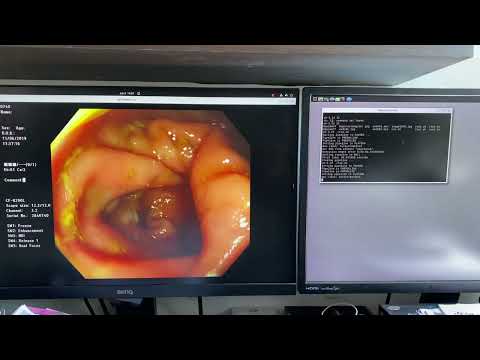
- mp4 video decompression > compression > streaming
Two important Gstreamer elements used on Renesas RZ/G2L
h.264 decoder: omxh264dec
h.264 encoder: omxh264enc
Please change the IP address and file name in the .sh script in the following,
run the script
run2.sh
or run the command below
gst-launch-1.0 -e filesrc location=./endo01.mp4 ! qtdemux ! queue ! \
h264parse ! omxh264dec ! omxh264enc ! rtph264pay config-interval=10 ! udpsink host=192.168.0.105 port=5000
- mp4 video decompression > image processing ( equirectangular ) > compression > streaming
Please change the IP address and file name in the .sh script in the following,
run the script
run3.sh
or run the command below
h264parse ! omxh264dec ! videoconvert ! equirectangular ! videoconvert ! omxh264enc !
rtph264pay config-interval=10 ! udpsink host=192.168.0.105 port=5000
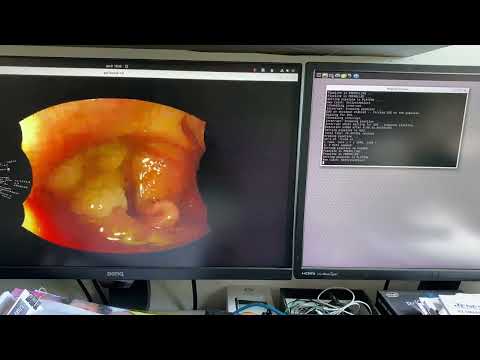
Since the execution speed is slower, some frames
could be droped during the playback.
A longer mp4 test file would lead to better
result.
- mp4 video decompression > image processing ( equirectangular) > display
This test is simpler than
the previous one. We can use it to compare the speed.
Please change the IP address and file name in the .sh script in the following,
run the script
run4.sh
or run the command below
gst-launch-1.0 -e filesrc location=./endo01.mp4 ! qtdemux ! queue ! \
h264parse ! omxh264dec ! videoconvert ! equirectangular ! videoconvert !
 autovideosink
Result output:
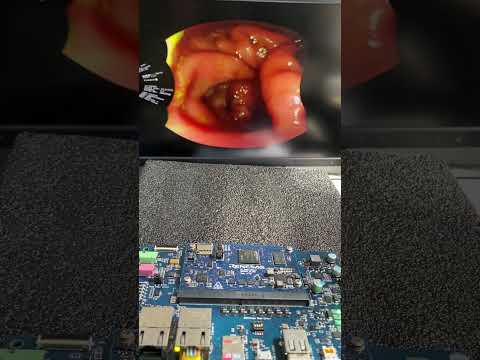
Since the execution speed is slower, some frames
could be droped during the playback.
A longer mp4 test file would lead to better
result.
The execution result on PC for comparison: